Get ArcGIS Pro on your computer
ArcGIS Pro is geographic information system (GIS) software for mapping, spatial analysis and data visualisation.
It's available at no cost to current Macquarie University students and staff through the University's ArcGIS Online organisation.
See below for instructions for downloading, installing and licensing ArcGIS Pro on Windows.
Before you start
- ArcGIS Pro runs on Windows only. See System requirements below.
- You'll need your OneID and password.
- You'll need administrator rights on your computer to run the installer.
- On an MQ-managed Windows PC, you can use BeyondTrust to elevate your access and install ArcGIS Pro.
- The installer is a large file, so use a stable internet connection and allow time for the download.
Download and installation
To download ArcGIS Pro:
- Go to mq.maps.arcgis.com.
- Click Macquarie University.
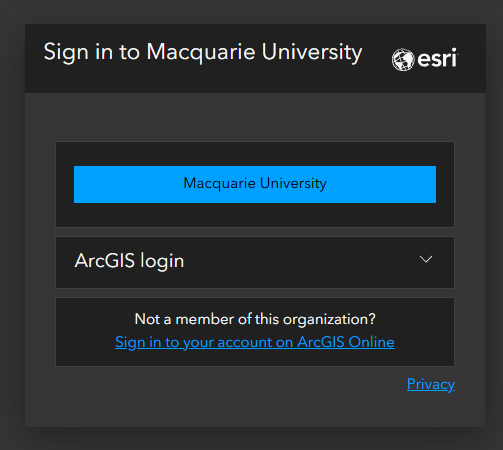
- You'll be redirected to the SSO page. Sign in using your student or staff OneID and password.
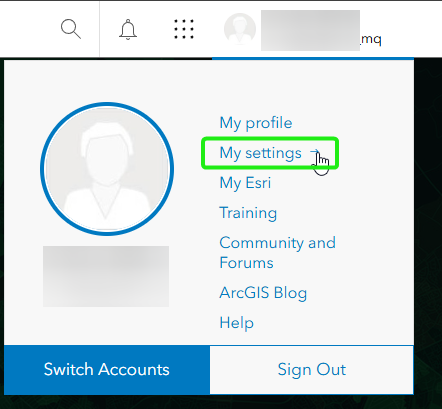
- At the top of the page, click your username, then click My settings.
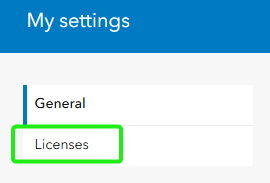
- On the My settings page, click the Licenses side tab.
- Next to ArcGIS Pro, click Download ArcGIS Pro.

- In the Download ArcGIS Pro window, review the language setting. To download a localised version of ArcGIS Pro, change the setting to the language you want.
- Click Download. An executable file (.exe) is downloaded to your computer.
- Find the newly downloaded file, run it to extract the installer, and follow the on-screen prompt to complete the installation.
Licensing ArcGIS Pro
To license ArcGIS Pro:
- Open ArcGIS Pro. You'll be prompted to license the software.
- Under Your ArcGIS organization's URL, enter mq. Tick Remember this URL so you aren't prompted each time you open the software.
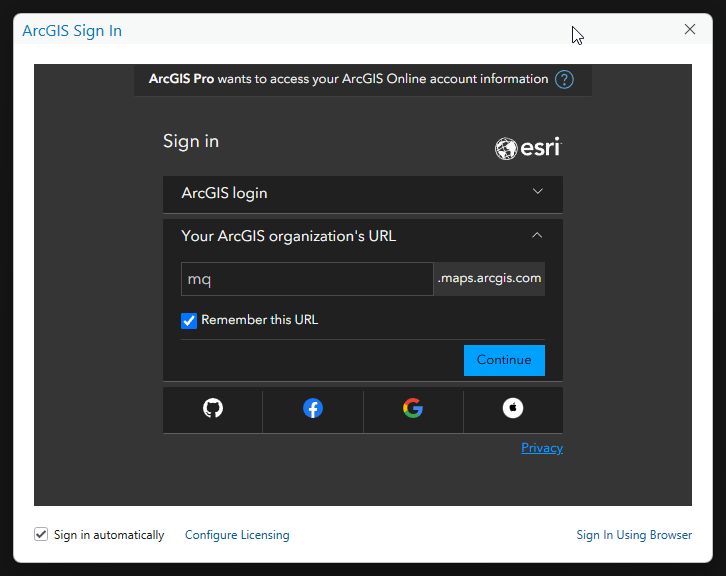
- Click Continue.
- You'll be redirected to the SSO page. Sign in using your student or staff OneID and password.
- ArcGIS Pro is now licensed, and you can start using the software.
System requirements
ArcGIS Pro is currently supported to run on Windows only. Visit the ArcGIS website for full details on the operating system and hardware requirements. Esri also provides a tool on that page that scans your computer and generates a compatibility report.
Using a Mac? You can use ArcGIS Online in your web browser for mapping and analysis. For ArcGIS Pro itself, you'll need access to a Windows computer. On-campus computer labs are an option worth checking with your unit convenor.
Need help?
The installer won't run, or asks for administrator credentials
You need administrator rights on the computer. On a University-managed device, you can elevate using BeyondTrust. If you're unsure how to do this, request support through OneHelp.
ArcGIS Pro says you don't have a licence
Check that you signed in with your OneID through the MQ organisation URL, rather than a personal ArcGIS account. Sign out in ArcGIS Pro, then sign back in using the steps above.
Can I use ArcGIS Pro without an internet connection?
Yes. ArcGIS Pro normally contacts ArcGIS Online periodically to check your licence, so it will stop working if you're offline for an extended period. To work in a disconnected environment:
- open ArcGIS Pro while you still have internet access
- go to Settings > Licensing
- set a workstation alias
- choose the number of days you need
- tick Authorize ArcGIS Pro to work offline.
See Esri's guide to working with a Named User licence for full instructions
While your licence is offline it is tied to that one computer. You won't be able to sign in to ArcGIS Pro on any other machine, including campus computer labs, until you return the licence by unticking the same checkbox while connected to the internet.
IT Service Desk
TechBar
Ground Floor, 18 Wally’s Walk
Macquarie University