IT security update
We are uplifting both our cybersecurity and your everyday browsing experience and will be rolling out uBlock Origin Lite across your university device internet browsers (Microsoft Edge, Google Chrome, and Mozilla Firefox).
This change will result in:
- Fewer ads, pop-ups and trackers while you browse
- Faster page loads and cleaner experience on most websites
- Reduced exposure to malicious ads and tracking scripts
If you have any issues with a specific website, like content is missing or you are unable to access our chat functionality, you can turn off the advertisement blocker by following the instructions below.
uBlock Origin — User Guide
Turning the ad blocker on and off
This guide explains how to adjust uBlock Origin Lite (uBOL) on the websites you visit. You may need to do this if a site isn't displaying or functioning correctly with the ad blocker enabled - for example, if a video won't play, a form won't submit, or content appears to be missing.
In Edge and Chrome, uBOL uses a filtering mode slider with four levels. You can set the level for each individual website you visit, and your choice is remembered for that site.
To open uBOL on the current site:
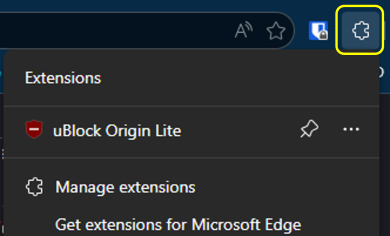
- Click the Extensions (puzzle piece) icon to the right of the address bar.
- Select uBlock Origin Lite in the list. The uBOL pop-up will appear, showing the website you're currently on at the top.
The four filtering modes
The slider runs from least restrictive (left) to most restrictive (right):
- No filtering
- uBOL is effectively turned off for this site. Use this if a site is broken and you need to see everything exactly as the site delivers it.
- Basic
- Blocks ads and trackers using network-level rules only. This is the safest level if a site is misbehaving but you still want some protection.
- Optimal (recommended default)
- Network filtering plus generic cosmetic filtering. Blocks most ads and clutter on the majority of sites.
- Complete
- Maximum filtering, including site-specific cosmetic rules. Most effective, but slightly more likely to break a small number of sites.
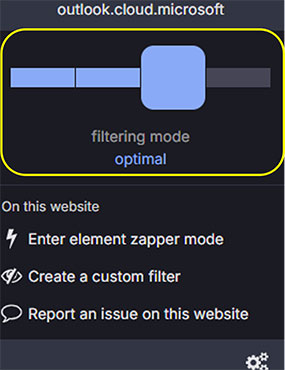
To change the level for the current site:
- Open the uBOL pop-up (as above)
- Drag the slider left or right to the desired level
- The page will reload automatically and the new setting will apply
To turn uBOL off for one site only:
- Slide all the way to the left ("No filtering"). To re-enable it, open uBOL on that site again and slide back to "Optimal" (or your preferred level).
In Firefox, uBOL provides a simple on/off (power) button for each website rather than a slider.
To open uBOL on the current site:
- Click the uBlock Origin Lite icon in the toolbar (to the right of the address bar). If it isn't visible, click the Extensions (puzzle piece) icon and select uBOL from the list.
- The uBOL pop-up will appear, showing the current website at the top and a large power button.
Wallumattagal Campus
Macquarie University NSW 2109