Connect to our high speed Wi-Fi network
Macquarie OneNet Wi-Fi is the easiest, most convenient way for students to connect wirelessly to our campus network and the internet.
Macquarie OneNet Wi-Fi
Macquarie OneNet Wi-Fi is available to all current students and is the easiest way for students to obtain a secure connection wirelessly to our campus network and avoid costly mobile data access. Once setup, the connection will be automatic whenever you're in a coverage area. You may connect to Macquarie OneNet Wi-Fi on your laptop, phone and iPad/android tablets. Just login to the Wi-Fi with your OneID credentials.
Device set up
To set up Macquarie OneNet Wi-Fi on IOS devices follow the instructions below.
- Go to Settings > Wi-Fi
- If the Wi-Fi is turned off, turn it back on
- Select Macquarie OneNet
- Enter your OneID username and password, and press Join.
- Press Trust to add the certificate to your device.
You are now connected to Macquarie OneNet Wi-Fi.
Need more help? Contact the IT Service Desk on 9850 4357 or email onehelp@mq.edu.au
To set up Macquarie OneNet Wi-Fi on IOS devices follow the instructions below.
- Go to Settings > Connections and switch on Wi-Fi and select Macquarie OneNet
- Set EAP method to PEAP and Phase 2 authentication to MSCHAPV2
- Set the CA certificate to Use system certificates
- Enter the domain radius.mq.edu.au
- Enter your OneID in the identity field and Anonymous Identify field and your password in the password field
- Tap and connect
You should now be connected to the Macquarie OneNet Wi-Fi
Note: for devices running Android 11 or higher, please set:
- CA Certificate: Use System Certificates
- Online Certificate Status: Don't validate
- Domain: radius.mq.edu.au
Need more help? Contact the IT Service Desk on 9850 4357 or email onehelp@mq.edu.au
To set up Macquarie OneNet Wi-Fi on Windows devices follow the instructions below.
- Click the network/Wi-Fi icon or connections icon in the bottom right of the taskbar (see images below for examples)
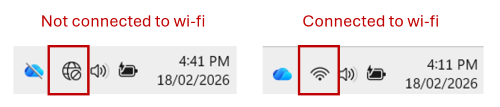
- Turn on Wi-Fi and select Macquarie OneNet
- Ensure "Connect automatically" is checked and click Connect
- Enter your username: Your 8-digit OneID number (eg. 45123456)
- Enter your password: Your OneID password
- If a certificate prompt appears, click "Connect" or "Trust" to accept it
You are now connected to Macquarie OneNet Wi-Fi.
Need more help? Contact the IT Service Desk on 9850 4357 or email onehelp@mq.edu.au
To set up Macquarie OneNet Wi-Fi on Mac devices follow the instructions below.
- Click the Wi-Fi icon in the top right corner of your screen and ensure it is turned on.
- Choose Macquarie OneNet
- Enter your Macquarie OneID and password.
- If prompted to trust a certificate, select "Trust" or "Continue" to secure the connection
You are now connected to Macquarie OneNet Wi-Fi.
Need more help? Contact the IT Service Desk on 9850 4357 or email onehelp@mq.edu.au
To set up Macquarie OneNet Wi-Fi on Linux devices follow the instructions below.
- Select Network Name Macquarie OneNet
- Select security WPA2 Enterprise
- Set EAP method to PEAP and Phase 2 authentication to MSCHAPV2
- Enter your OneID in the identity field and your password in the password field
- Set the CA certificate to Use system certificates or Validate (using system CA certificates) leave anonymous identity blank
- Enter the domain radius.mq.edu.au
You are now connected to Macquarie OneNet Wi-Fi.
Need more help? Contact the IT Service Desk on 9850 4357 or email onehelp@mq.edu.au
Other wireless networks
OneNet Anywhere Virtual Private Network (VPN) is only available to approved students.
- Students who require VPN access must submit a OneHelp request.
- Access can only be granted for legitimate reasons and require an approval from lecturers or supervisors as well as the Chief Information Security Office.
- Access will be removed in February and August (as a regular clean up exercise), students will need to re-apply for access if needed.
OneNet Wired is dedicated to staff.
Eduroam (education roaming) is the secure, world-wide roaming access service developed for the international research and education community.
Eduroam allows students, researchers and staff from participating institutions to access the internet when visiting other universities by using credentials from their own institution.
FAQs
Macquarie University offers four Wi-Fi networks.
1. Macquarie OneNet
The primary Wi‑Fi network for all current Macquarie University staff, students, and researchers. It provides secure, high‑speed internet access for laptops, tablets, and mobile devices, and is the recommended network for everyday use on campus.
2. Eduroam
A global Wi‑Fi service that enables students, researchers and staff from participating institutions to access secure internet at other universities worldwide using their home‑institution login credentials. Ideal for anyone visiting partner campuses or travelling for study, research or conferences.
3. Macquarie Events
A Wi‑Fi network designed to provide internet access for visitors attending university‑approved or university‑hosted events. Intended for short‑term use by guests who do not have Macquarie University credentials. Macquarie Event access can be arranged with a OneHelp request.
4. MQ-BYOD
A Wi‑Fi network designed to provide internet access for devices that cannot authenticate using standard Macquarie University credentials. These devices require a pre‑shared key (PSK), which can be requested from the IT Service Desk. Ideal for specialised equipment, IoT devices, or legacy hardware that does not support secure login methods. MQ-BYOD access can be arranged with a OneHelp request.
If you’re experiencing slow speeds, dropouts, or connectivity problems, try the following steps:
1. Check your location
Wi‑Fi signals can be weaker in basements, enclosed rooms, or areas with heavy interference. Move to a more open space or closer to a Wi‑Fi access point for a stronger connection.
2. Restart Wi‑Fi on your device
Turning your Wi‑Fi off and on again can allow your device to reconnect to a stronger or less congested access point.
3. Reconnect if your Wi‑Fi certificate has expired
Occasionally, authentication certificates expire. Disconnect and reconnect or choose Forget this network and log in again using your OneID credentials.
4. Use the 5GHz band where possible
Many devices allow you to select the preferred band.
The 5GHz band offers more channels and is less prone to interference than 2.4GHz, which can improve speed and stability. Refer to your device’s user manual for instructions on setting your preferred band.
5. Update your device software or Wi‑Fi adapter drivers
- Apple and Android devices should be updated to the latest OS version.
- Laptops may require updating the Wi‑Fi adapter drivers to resolve stability or performance issues.
6. Check the Macquarie University IT status page for any Wi-Fi outages
If you are still having issues, call the IT Service Desk on 02 9850 4357, or visit the Service Desk at 18 Wally’s Walk, Ground floor.
The following IoT devices are allowed to connect to the MQ-BYOD Wi-Fi network
Gaming Consoles – access contained within 15-17 Gymnasium Rd residential site. Expires at the end of each year and must be reapplied for at the beginning of the next year.
Smart TVs – university provided smart TVs
IT Service Desk
TechBar
Ground Floor, 18 Wally's Walk
Macquarie University NSW 2109